Quick Start
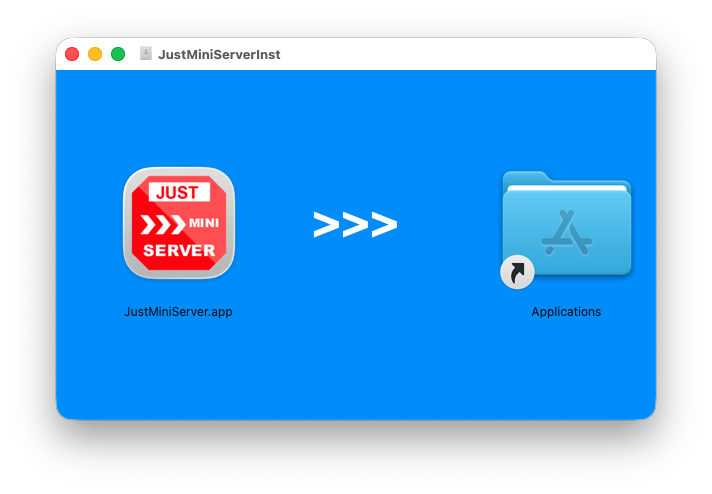
1. Install
Download and install JustMiniServer for your platform.
2. Open the app
Launch JustMiniServer and open the main window.
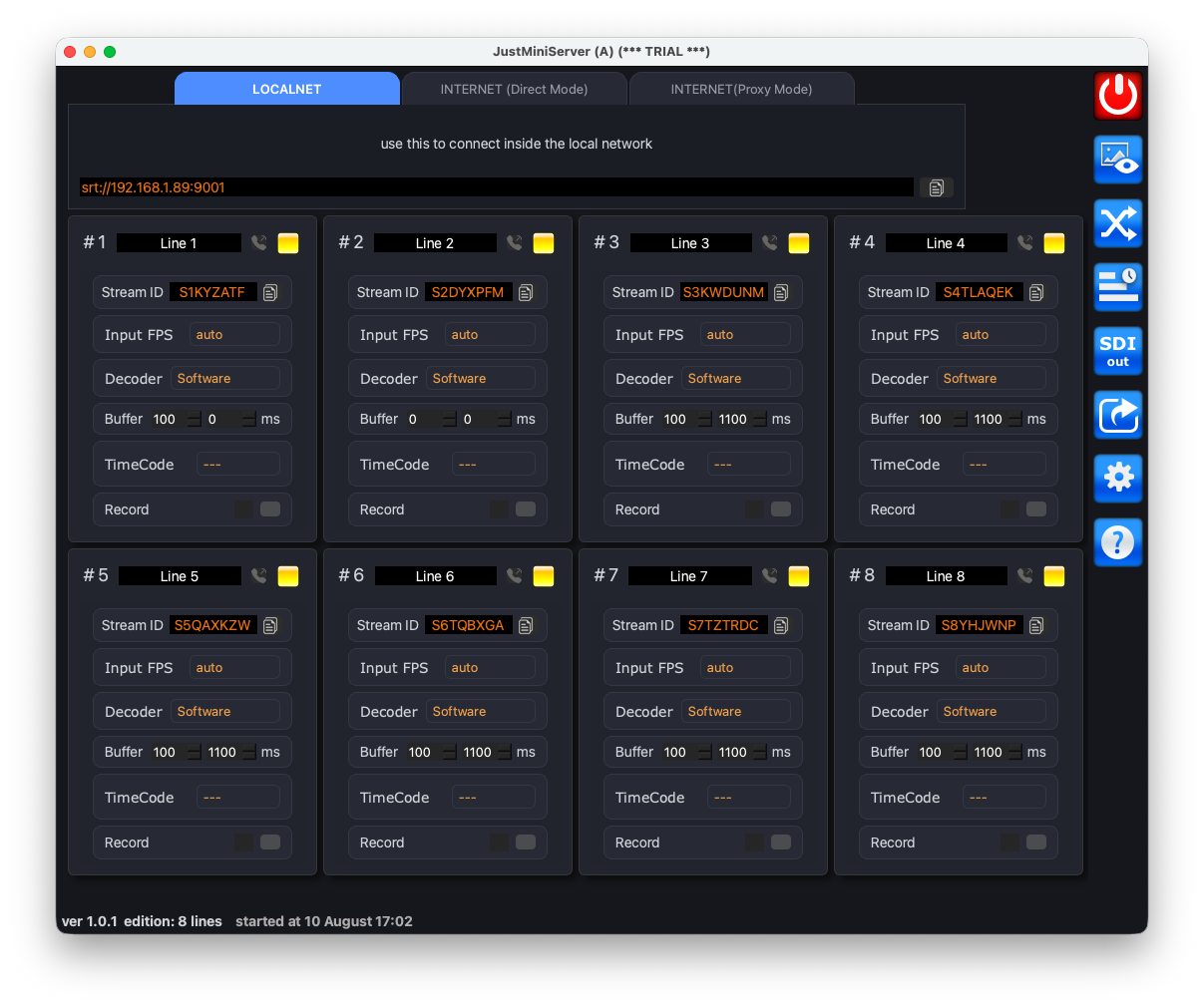
Three tabs show where to send the stream:
- LOCALNET — address for connecting from the local network
- INTERNET (Direct Mode) — address for connecting from the internet directly (public IP + port forwarding on the router) (more »)
- INTERNET (Proxy Mode) — connect via proxy when you have no dedicated IP or cannot set up port forwarding (more »)
For a first test, we recommend running an encoder on the same local network and using the address from the LOCALNET tab.
3. Setup Encoder (as Caller)
Set up your encoder in Caller mode so it sends an SRT stream to JustMiniServer.
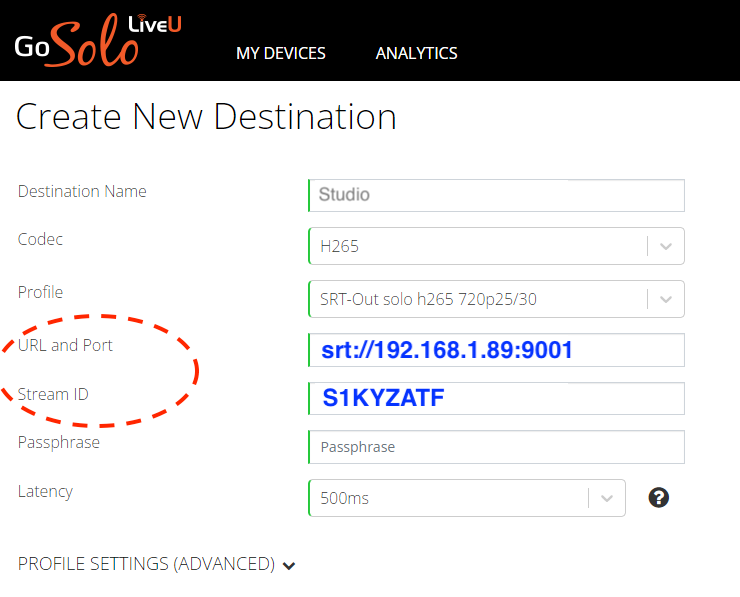
For most hardware encoders there is a separate field for the IP and port, and another for the Stream ID — for example on LiveU Solo:
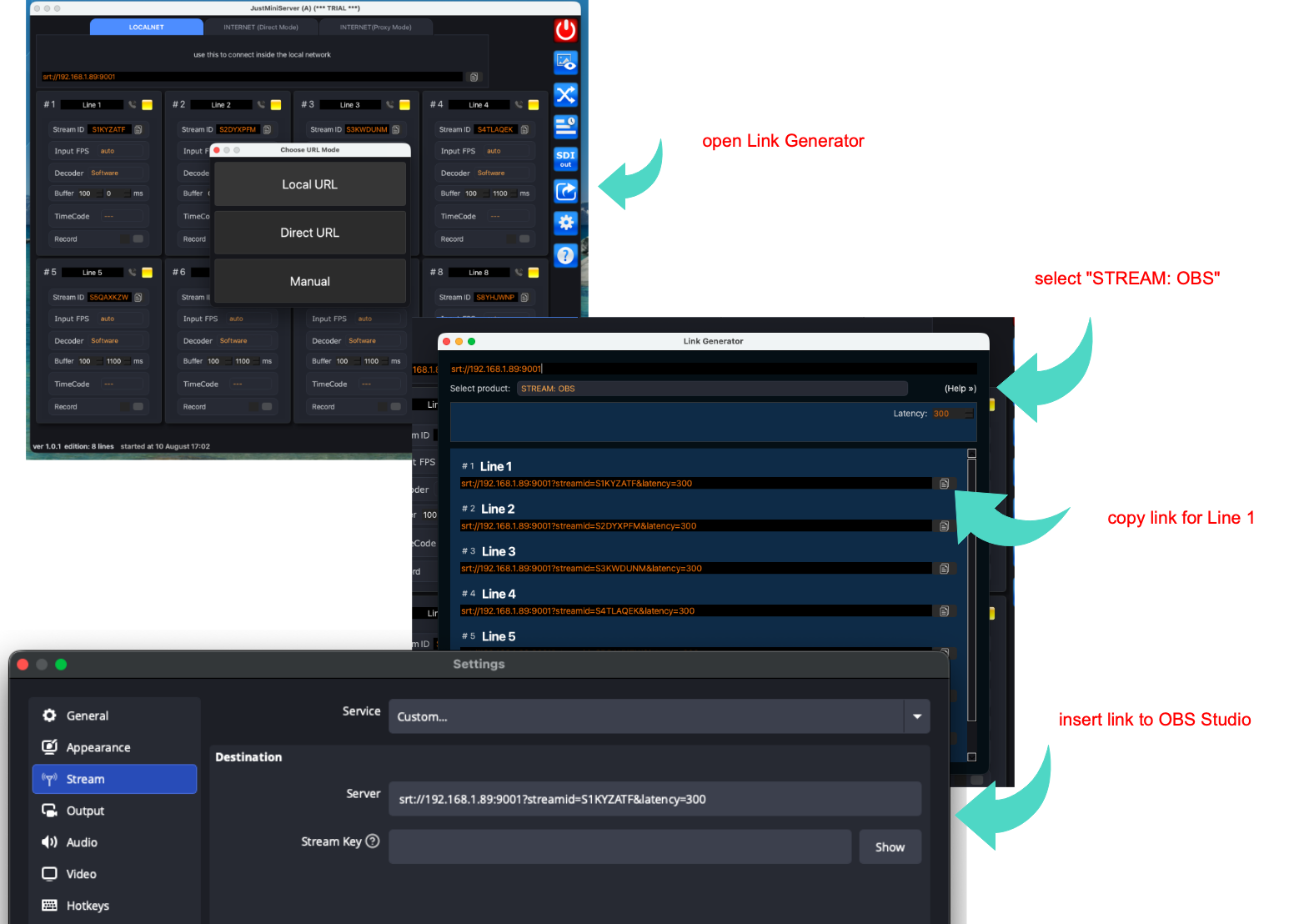
But some encoders ask for one full URL with all parameters included — for example OBS Studio. You can prepare it manually, but the built-in helper does it much faster — as shown below. In this example we generate a streaming link for OBS Studio.
4. Receive a stream
When the encoder connects, statistics appear on the corresponding line in JustMiniServer.
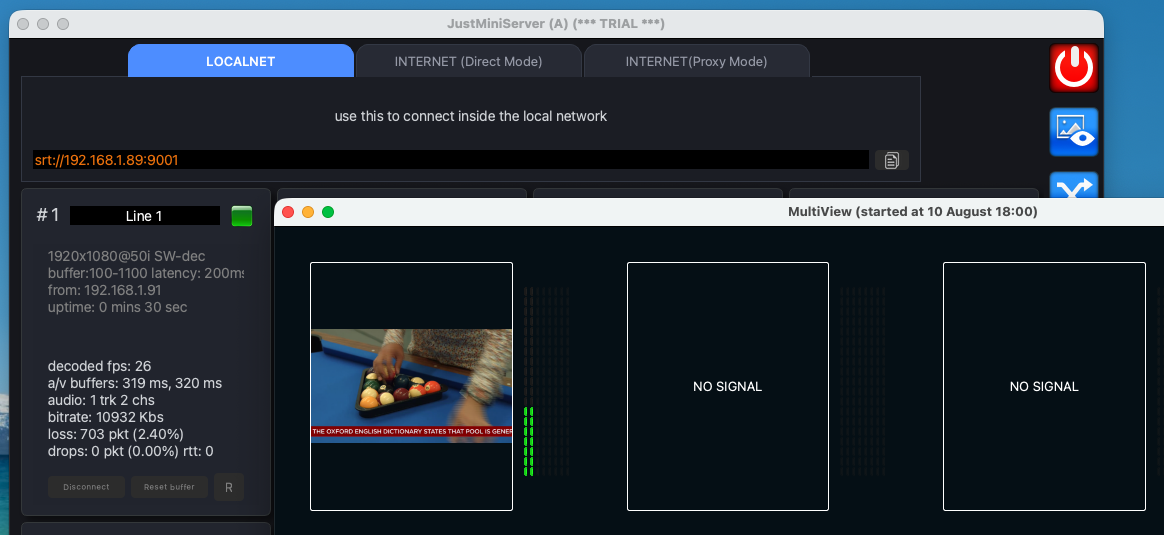
Fixed — detected at connection time:
- frame size & fps
- IP the connection came from
Dynamic — changes during the stream:
- decoded fps
- loss (lost packets)
- drops (dropped packets)
- RTT
By default an NDI output is also generated for the line.
To quickly preview the picture, use the MultiView button.